MCP Server
Connect AI clients to Optionomics data
Optionomics runs a Model Context Protocol (MCP) server, letting compatible AI clients call a defined set of read-only market-data tools. You can ask for quotes, options chains, flow, gamma exposure, unusual activity, news and events, insider and politician trades, trade ideas with their track record, and earnings analyses—without giving the client write access to your Optionomics account.
- Endpoint:
https://optionomics.ai/mcp(Streamable HTTP) - Requirements: A Vega subscription on Optionomics
- Registry manifest:
https://optionomics.ai/.well-known/mcp/server.json
What You’ll Need
- Email — the email address on your Vega account
- API key — created in the developer console at Developers → API keys
Every client configuration sends these as headers:
X-USER-EMAIL: your-email@example.com
X-USER-TOKEN: your-api-key
Clients that can only send a single Authorization header can authenticate with standard bearer syntax instead, encoding both values:
Authorization: Bearer base64("your-email@example.com:your-api-key")
Keep API keys out of committed project files. Prefer user-level client config or environment variables; if you use a workspace config file, add it to .gitignore.
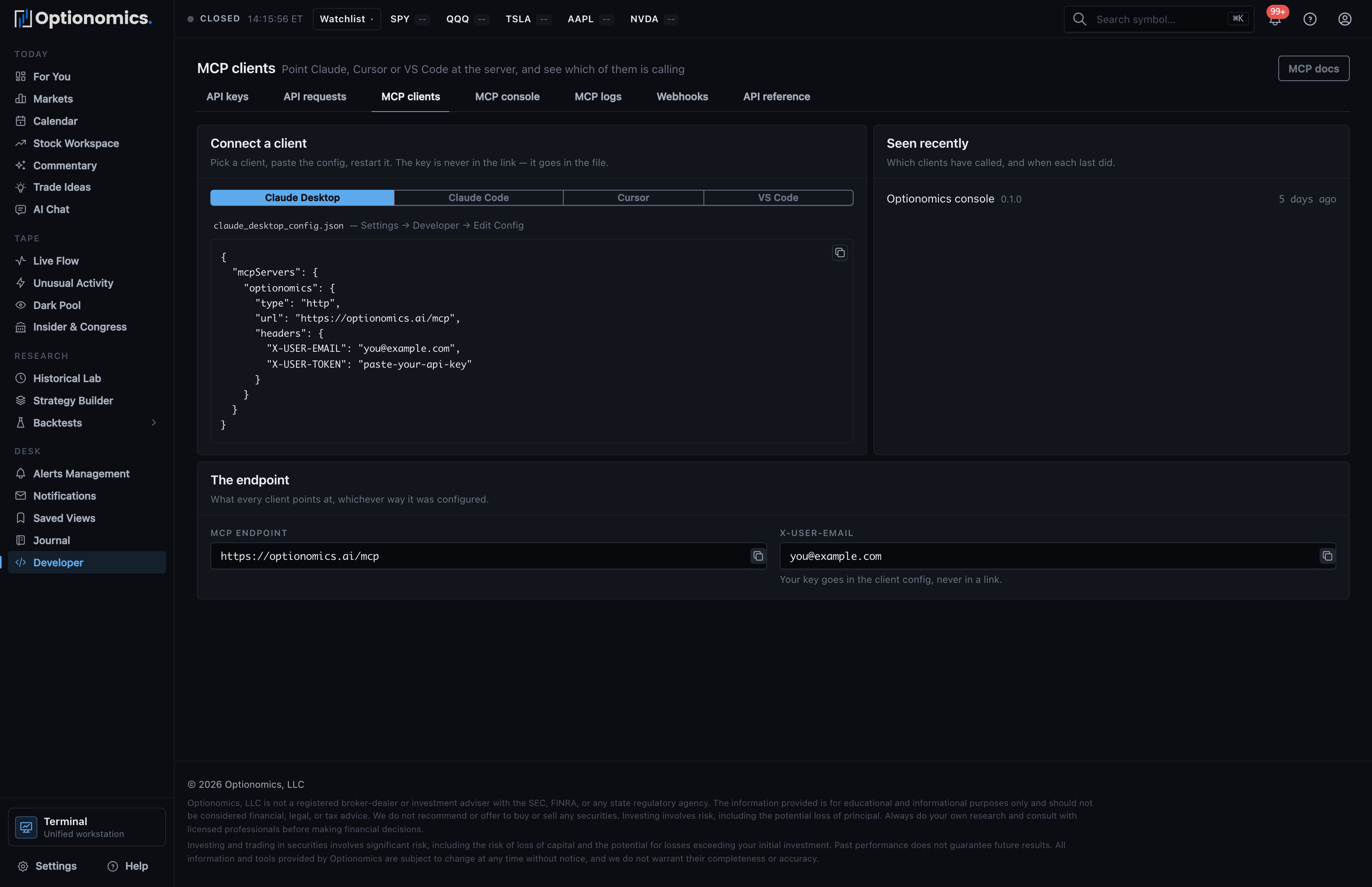
The fastest path: the developer console’s MCP clients tab generates the exact config for your client with your email pre-filled, offers one-click install for clients that support it, and shows a Seen recently panel so you can confirm the connection end to end.
Available Tools
Once connected, your AI client can call these tools (this is the same list the reference page generates from the live server):
| Tool | Description |
|---|---|
stock_quote |
Current or historical stock quote with OHLC, volume, and price change |
options_chain |
The options chain with Greeks, strikes, prices, volume, and open interest |
option_metrics |
Put/call ratio, IV, GEX, DEX, max pain, and key levels |
options_flow |
Aggregated options flow: bullish/bearish flow, top calls, or top puts |
net_flow |
Net call/put premium flow timeseries with resolution and DTE filters |
unusual_activity |
Unusual options activity alerts with high-premium, high-volume trades |
support_resistance_levels |
Support and resistance levels derived from options flow |
market_overview |
Major indices prices, changes, and volume |
price_history |
Daily OHLCV history with period return, drawdown, and realized volatility |
news |
Recent ticker or macro market headlines with summaries and source URLs |
news_sentiment |
Analyzed ticker or macro news sentiment with headline context |
gamma_exposure |
GEX levels, net dealer positioning, and support/resistance by strike |
trend_analysis |
Price trend, momentum, volatility, and S/R over a lookback window |
dark_pool_levels |
Dark pool support and resistance from large off-exchange prints |
iv_term_structure |
IV term structure, IV rank/percentile, and realized-vs-implied context |
events |
Market-moving events by date window, ticker, kind, and status |
insider_trades |
SEC Form 4 insider trades with filters and pagination |
politician_trades |
House, Senate, and OGE disclosure trades with filters |
trade_ideas |
Published trade ideas with levels, lifecycle status, and track record |
trade_idea_assessment |
The latest stored conditions assessment for a trade idea |
track_record |
The published trade-idea track record by strategy family |
market_commentary |
Generated market commentary for a session, filterable by category |
earnings_analyses |
Analysed SEC filings: summary, sentiment, highlights, risks, guidance |
Available resources:
| Resource | Description |
|---|---|
| Available Symbols | List of tracked stock symbols |
| Trading Days | List of available trading days |
Every tool is read-only. Each call spends from the same 1,000 requests per minute account allowance as the REST API.
Claude Desktop
Edit your Claude Desktop config file (Claude Desktop → Settings → Developer → Edit Config):
- macOS:
~/Library/Application Support/Claude/claude_desktop_config.json - Windows:
%APPDATA%\Claude\claude_desktop_config.json
{
  "mcpServers": {
    "optionomics": {
      "type": "http",
      "url": "https://optionomics.ai/mcp",
      "headers": {
        "X-USER-EMAIL": "your-email@example.com",
        "X-USER-TOKEN": "paste-your-api-key"
      }
    }
  }
}
Restart Claude Desktop completely (quit and reopen, not just close the window), then confirm the tools appear in the tools menu.
Claude Code
Create .mcp.json in your project root (checked in beside the code that uses it—but keep the key itself in an ignored file or environment variable):
{
  "mcpServers": {
    "optionomics": {
      "type": "http",
      "url": "https://optionomics.ai/mcp",
      "headers": {
        "X-USER-EMAIL": "your-email@example.com",
        "X-USER-TOKEN": "paste-your-api-key"
      }
    }
  }
}
Cursor
Use the Install in Cursor one-click button on the MCP clients tab, or create ~/.cursor/mcp.json (or .cursor/mcp.json for one project, excluded from source control):
{
  "mcpServers": {
    "optionomics": {
      "type": "http",
      "url": "https://optionomics.ai/mcp",
      "headers": {
        "X-USER-EMAIL": "your-email@example.com",
        "X-USER-TOKEN": "paste-your-api-key"
      }
    }
  }
}
Restart Cursor after saving.
VS Code (GitHub Copilot)
Use the Install in VS Code one-click button on the MCP clients tab, or create .vscode/mcp.json (VS Code uses a servers key):
{
  "servers": {
    "optionomics": {
      "type": "http",
      "url": "https://optionomics.ai/mcp",
      "headers": {
        "X-USER-EMAIL": "your-email@example.com",
        "X-USER-TOKEN": "paste-your-api-key"
      }
    }
  }
}
Then open the Command Palette (Cmd+Shift+P / Ctrl+Shift+P), run MCP: List Servers, and start the Optionomics server. Add .vscode/mcp.json to .gitignore if the file contains credentials.
Other clients
Any MCP client that speaks Streamable HTTP and can send either custom headers or a bearer token works the same way: point it at https://optionomics.ai/mcp with the X-USER-EMAIL/X-USER-TOKEN headers, or Authorization: Bearer base64(email:api-key) where only one header is possible. Client settings change independently of Optionomics, so follow your client’s current documentation for where its MCP config lives.
Registry-aware clients can also discover the server from its public manifest at https://optionomics.ai/.well-known/mcp/server.json.
Verify and debug your connection
- MCP console (
/developers/console) — run any tool from the browser as your own account and read exactly the JSON a client would get back, plus the raw request to reproduce it. - MCP logs (
/developers/logs) — every call your clients made: tool, arguments, response, latency, and outcome. - Seen recently (
/developers/clients) — which client applications have actually called with your keys.
Example Prompts
Once connected, try these prompts in your AI client:
- “What’s the current put/call ratio and IV rank for SPY?”
- “Show me the top 10 unusual options activity alerts today, excluding ETFs”
- “Get the options chain for TSLA with calls only, sorted by strike”
- “What are the dark pool support and resistance levels for AAPL?”
- “Any congressional trades in NVDA this quarter?”
- “Summarize the latest earnings analysis for MSFT”
- “What’s the trade-idea track record for the last 90 days?”
Troubleshooting
| Issue | Solution |
|---|---|
| 401 Unauthorized | Verify your email and API key are correct and belong to the same account. Check for extra spaces or newlines. |
| 403 Forbidden | MCP access requires a Vega subscription. Manage or upgrade your plan here. |
| 429 Too Many Requests | You crossed the shared 1,000-requests-per-minute allowance—slow the client down. |
| Connection timeout | Ensure your network allows HTTPS connections to optionomics.ai. |
| Tools not appearing | Restart the client completely (quit and reopen). Check server status in client settings, then check /developers/clients for whether calls arrived. |
Security Notes
- Never commit your API key to version control. Use environment variables or
.gitignore‘d config files. - Your API key authenticates as your user account. Treat it like a password, and revoke it from the developer console if it leaks.
- All connections are encrypted over HTTPS/TLS.
- Every call is logged to your own MCP log, so you can audit what a connected client actually asked for.
