Stock Workspace
Every per-symbol view in one tab bar
What the Stock Workspace is
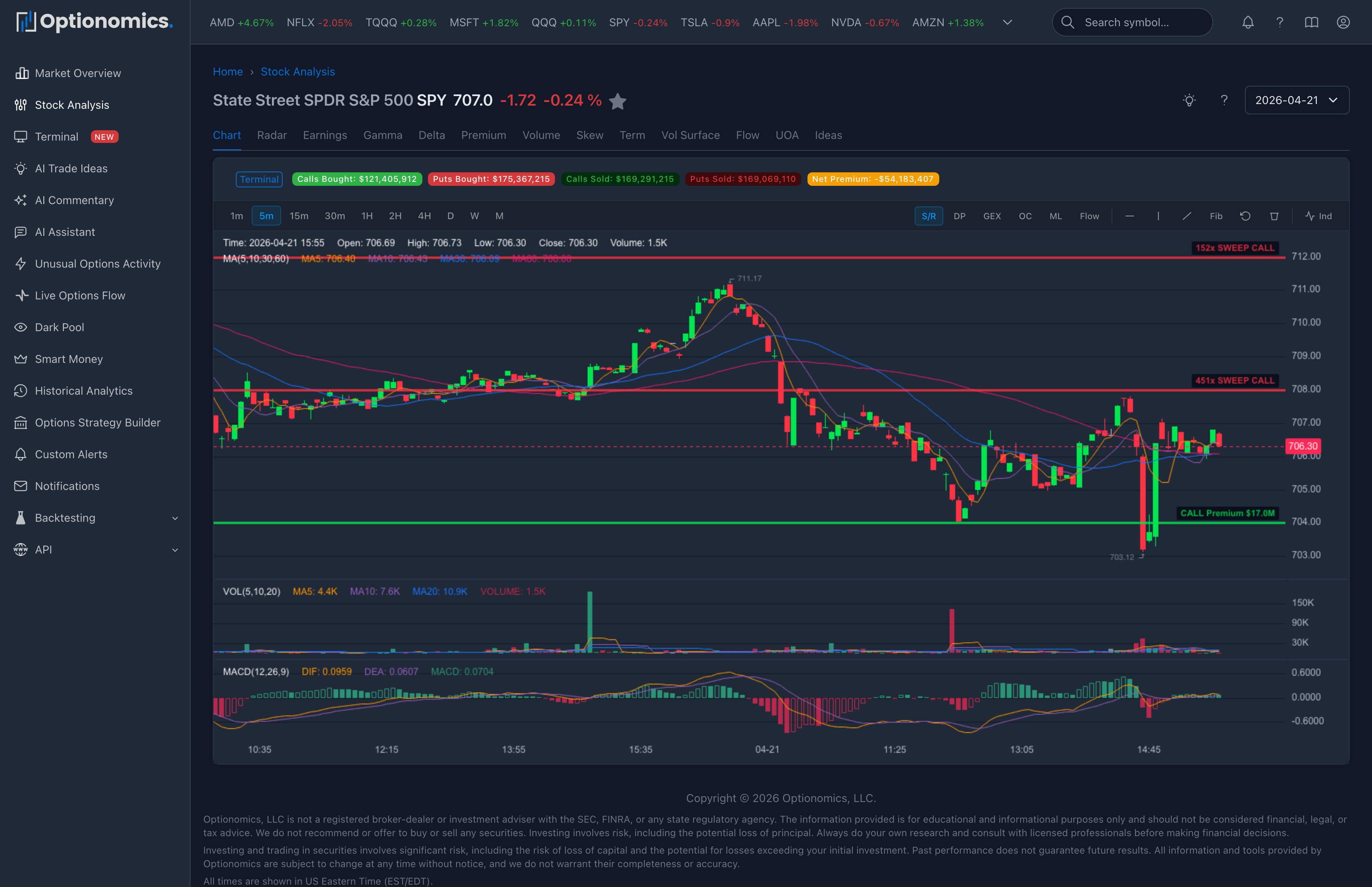
The Stock Workspace is the single-name workspace in Optionomics—the entry called Stock Workspace in the sidebar, and the home of every per-symbol view. Open it from the sidebar, by searching a ticker in the top bar, from the command palette (⌘K), or by URL (e.g. /stocks/AAPL). You land on the chart, with a tab bar that walks the same symbol across every angle the platform measures—without ever leaving the name.
Availability: Access varies by tab. The daily analytics tabs and the Historical Lab begin with Delta; Chart, News, Radar, Flow, UOA, Dark Pool, and the disclosure tabs come with Gamma; Earnings and Ideas require Theta or Vega. The interface shows an upgrade message when a tab is outside your plan.
The page header
The header is the same on every tab:
| Element | Purpose |
|---|---|
| Quote | Company name, logo, live price, day’s change and % change |
| Regime badge | A compact market-regime read for the symbol, with a confidence % |
| Watchlist bookmark | Add to a watchlist—a dropdown of your named watchlists, with a Manage watchlists shortcut |
| Help (?) | Jump to the docs for the current view |
| Date selector | Time Travel—move the date-aware tabs to a prior trading session |
The tab bar
The tabs are grouped into four clusters:
| Cluster | Tabs |
|---|---|
| Price & structure | Chart · Radar · News |
| Daily analytics | Gamma · Delta · Premium · Volume · Skew · Term · Vol Surface · Heatmap · History |
| Fundamentals & filings | Earnings · Insider · Congress |
| Live activity & tools | Flow · UOA · Dark Pool · Ideas · Build |
What each tab opens:
| Tab | What it shows |
|---|---|
| Chart | The interactive symbol chart with overlays, drawing tools, and indicators (details below) |
| Radar | Market Radar—strike, expiration, premium, sentiment, volatility, and execution context in twelve panels |
| News | The symbol’s news feed with story grouping, topic chips, and sentiment filters (details below) |
| Gamma / Delta / Premium / Volume | The daily exposure and distribution charts by strike for the chosen date |
| Skew / Term / Vol Surface | How implied volatility is priced across strikes, expirations, and both at once |
| Heatmap | The exposure heatmap across strikes and expirations (GEX, Vanna, Charm) |
| History | The Historical Lab—compare up to eight historical signals on one timeline |
| Earnings | Earnings Analysis for this symbol—filings, AI summaries, and the financial story |
| Insider / Congress | The symbol’s insider and political disclosure filings from the last year |
| Flow | Live options flow filtered to this symbol |
| UOA | Unusual options activity filtered to this symbol |
| Dark Pool | Off-exchange prints focused on this symbol |
| Ideas | Trade ideas generated for this symbol |
| Build | The Options Strategy Builder pre-loaded with this symbol’s chain |
The Chart tab
Above the chart, a card shows an Open in Pro Terminal button and five session premium badges: Calls Bought, Puts Bought, Calls Sold, Puts Sold, and Net Premium.
The chart toolbar provides:
- Timeframes: 1m, 5m, 15m, 30m, 1H, 2H, 4H, D, W, M (5-minute bars by default).
- Overlay toggles:
| Toggle | Overlay |
|---|---|
| S/R | Support/resistance levels derived from options flow (on by default) |
| DP | Dark pool support/resistance from recent off-exchange prints |
| GEX | Gamma-exposure key strikes |
| OC | Option-chain support/resistance (walls, max pain, key strikes) |
| VWAP | Session VWAP and premium-weighted strike VWAP |
| Flow | Net call/put premium flow lines |
- Drawing tools: horizontal line, vertical line, ray line, and Fibonacci retracement, with undo and clear.
- Indicators: main-chart MA (on by default), EMA, BOLL, SAR, BBI; sub-chart VOL and MACD (on by default), RSI, KDJ.
Minute bars stream in live while you watch the current session.
The News tab
The News tab shows up to 50 headlines, newest first, refreshed every minute:
- Story grouping: rewordings of the same wire story collapse under one lead item with a related-coverage list, so one event does not fill the page.
- Top story treatment: a story picked up by three or more outlets leads its day with a Top story badge.
- Day headers: stories are sectioned under Today, Yesterday, and dated headers.
- Filters: topic chips (the most frequent topics, with counts) and sentiment chips—Positive, Neutral, Negative—each removable, with a Clear filters link.
- Sentiment badges: each article carries its analyzed sentiment and a score, e.g. “Positive 82%”.
For ETFs and index products the tab shows market-wide stories instead of company-specific ones.
Why this layout matters
A typical research loop looks like:
- Chart — see how the day is shaping up; turn on the S/R, DP, GEX, or OC overlays.
- Gamma / Delta — confirm the positioning behind those levels.
- Skew / Term / Vol Surface — check how risk is priced across strikes and expiries.
- Flow / UOA / Dark Pool — drop into raw or curated activity to see what just printed.
- Ideas — see whether the platform has surfaced an explicit setup on this name.
- Earnings / Insider / Congress — when relevant, read the filing summary and the disclosure context.
- Build — model the position you are considering before you place it.
Because the header symbol and date selector persist across tabs, you can step through these views as a sequence rather than as separate searches.
Working with date selection (Time Travel)
The date selector lets date-aware tabs request a prior trading session. Daily analytics and the heatmap use the selected snapshot when data is available; live views default to the relevant current session according to their own controls.
Use this to ask:
- “What did GEX look like the day before the breakdown?”
- “How did skew change after the last earnings report?”
- “What was the chain priced like a year ago around the same event?”
The single-contract page
Clicking through to an individual option contract opens a contract page with the contract’s details (strike, type, expiration and days remaining), metric tiles—last price with its 30-day move, 30-day high, low and volume, implied volatility, open interest—and a price-history chart (or a volatility and open-interest history when price bars are unavailable).
Important context
- Some tabs are gated by plan—the page tells you when something is unavailable on your plan.
- Daily-analytics tabs are snapshots for the chosen date, not the live tape.
- The Radar tab is best for a structural overview; for active multi-panel work, use the Terminal.
Remember: The Stock Workspace exists so you don’t have to glue together six screens to research a single name. Use the tabs in the order that fits your style and let the persistent header keep the session anchored.
Related:
